
Smooth Desires: The Ultimate Guide to Optimizing Adult Games for Peak Performance
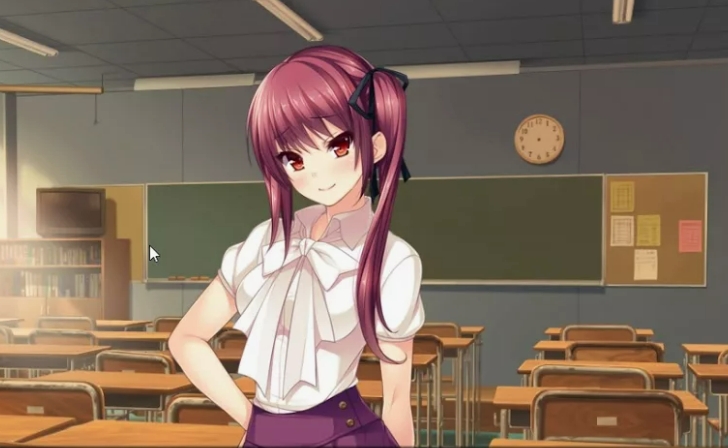
You launch that long-awaited Ren’Py visual novel or the ambitious Unreal Engine 3D sandbox. Instead of immersion, you get a slideshow. Frames freeze during transitions, characters stutter, and intimate scenes become a test of patience. Sound familiar?
The problem isn’t necessarily your hardware (or not entirely). Most adult games are built by indie developers or solo creators who lack the resources for AAA-level optimization. They might forget texture compression, set unrealistically high presets, or mishandle memory management. The good news: in 90% of cases, lag can be fixed with manual tweaks. This guide is your step‑by‑step checklist for turning a sluggish NSFW project into a smooth, responsive experience.
Why Do Adult Games Lag? Understanding the Technical Bottlenecks
Before fixing, understand the cause. Adult games have three typical bottlenecks:
- Unoptimized textures – Many indie devs throw 4K textures into the build without progressive streaming. Your GPU chokes on the data volume.
- Single‑core load – Older versions of Unity or Ren’Py don’t use multi‑threading well. One CPU core runs at 100%, the rest idle.
- Slow I/O – Thousands of tiny files (character images, backgrounds, sounds) load one by one. Even a good SSD can stumble due to overhead.
Additionally, many adult games launch with unnecessary background processes (Discord, a browser with 20 tabs, antivirus). Let’s start with the easy wins.
Software Tweaks for Immediate FPS Boost
Graphics Driver Updates and Control Panel Settings
First: update your GPU drivers. Go to NVIDIA or AMD and download the latest version. Don’t rely on Windows Device Manager.
For NVIDIA:
- Open NVIDIA Control Panel → “Manage 3D Settings”.
- Find “Power Management Mode” → set to “Prefer Maximum Performance”.
- “Texture Filtering – Quality” → “High Performance”.
- For Ren’Py games, disable “Vertical Sync” (if no screen tearing appears).
For AMD:
- In Adrenalin Edition, go to “Gaming” → select your game (or add manually).
- Enable Radeon Anti‑Lag.
- Set Texture Filtering Quality to “Performance”.
These tweaks alone can give a 10–20% FPS boost in heavy 3D projects.
Managing Background Processes and RAM
Visual novels and 3D sandboxes love RAM. Before launching:
- Close unnecessary browser tabs (Chrome can eat 2‑3 GB).
- Disable overlays: Discord Overlay, NVIDIA GeForce Experience Overlay, Xbox Game Bar.
- On Windows 10/11, turn on Game Mode (Start → Settings → Gaming → Game Mode → On).
For advanced users: use ISLC (Intelligent Standby List Cleaner). It automatically clears memory cache that Windows doesn’t release. After installation, set it to auto‑clean when 50% of RAM fills. This drastically reduces micro‑stutters in long gaming sessions.
Engine-Specific Optimization Guides
Ren’Py: Reducing Image Cache and Loading Times

Ren’Py is the most popular engine for adult visual novels. Its weakness: loading images without proper caching.
What to do:
- Open the game folder → find options.rpy (or gui.rpy). If missing, create an options.rpy file in Notepad.
- Add these lines:
- python
define config.image_cache_size = 384 # Increase cache (was 128)
- define config.predict_radius = 4 # Preload next 4 screens
- Save and restart the game. Scene transitions speed up by 30–40%.
If the game is compiled as .exe and doesn’t allow editing, try adding those lines to renpy/common/00start.rpy (create folders as needed).
Another tip: turn off font smoothing in the game’s settings (if there’s a “Smooth Fonts” option). This reduces CPU load during dialogue rendering.
Unity: Adjusting Quality Presets and Resolution Scaling
Many adult 3D Unity games (e.g., Wild Life, Carnal Instinct) have hidden quality settings.
- In the main menu, find “Graphics” or “Quality”. Set the preset to “Medium” or “Low”.
- Key options: Shadows → “Low” or “Off”, Anti‑aliasing → 2x or off, Post‑processing → off (removes motion blur).
- Resolution scaling – set to 85‑90%. You’ll barely notice the difference, but FPS can jump 15‑20%.
If the game launches via Unity Player, try adding a launch parameter: -force-d3d11 (use DirectX 11 instead of 12) or -window-mode exclusive (true fullscreen without the window manager).
Unreal Engine: Tinkering with Engine.ini for Better Performance
Unreal Engine 4/5 powers heavy projects like Virt‑A‑Mate and Wild Life. Here you can manually edit configs.
- Navigate to %LOCALAPPDATA%\[GameName]\Saved\Config\WindowsNoEditor\
- Open Engine.ini (create if missing) and add:
- ini
[SystemSettings]
r.ShadowQuality=0
r.PostProcessAAQuality=0
r.SceneColorFringeQuality=0
r.MotionBlurQuality=0
- r.RenderTargetPoolMin=500
- Save and set the file to “Read‑only” (Properties → Attributes) so the game doesn’t overwrite it.
These commands disable resource‑heavy effects: shadows, anti‑aliasing, chromatic aberration, and motion blur. FPS gains can reach 40% on weaker GPUs.
Optimizing High-Fidelity Renders (Virt-A-Mate & Honey Select)
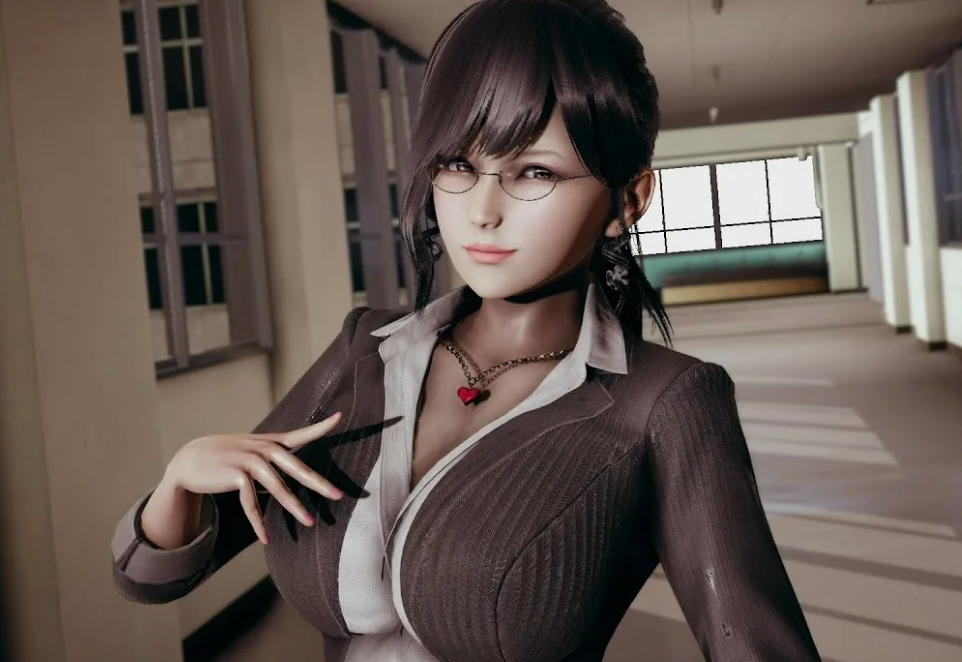
The most demanding adult games are sandboxes like Virt‑A‑Mate (VaM) and Honey Select 2. They can cripple even an RTX 4090.
For VaM:
- In graphics settings, reduce Pixel Light Count to 2 (max 3). Each extra light multiplies load.
- Set Soft Body Physics for clothing and hair to “Fast” (instead of “Accurate”).
- Start with Quality Settings → “Low”, then raise one parameter at a time.
- Important: the number of simultaneously loaded “persons” directly impacts VRAM. Two detailed models with 4K textures take 6‑8 GB. Adding a third will tank FPS.
For Honey Select 2:
- In the launcher (InitSetting.exe), turn off SSR (Screen Space Reflections) and Ambient Occlusion.
- Set Anisotropic Filtering to 4x (not 16x).
- Use the HS2 Optimizer mod (available on Patreon). It automatically reduces texture resolution for distant objects.
Golden rule for 3D sandboxes: fewer characters on screen at once = better framerate. Even with a top‑tier GPU, set a limit of 3‑4 active models.
Hardware Solutions: When Software Tweaks Aren’t Enough
If performance remains poor after all tweaks, consider an upgrade. But don’t rush to buy a new GPU.
SSD instead of HDD – the single most important upgrade for adult games. Most NSFW projects consist of tens of thousands of tiny files. On an HDD, random reads take seconds; on an NVMe SSD, milliseconds. Moving the game to an SSD speeds up area loads and transitions by 3‑5 times.
VRAM capacity: Ren’Py needs ~1 GB. Unity projects with HD models need 4‑6 GB. VaM with multiple characters needs 8‑12 GB. If your card has 4 GB and the game requires 6, you will drop to 10 FPS regardless of settings.
System RAM: Minimum 16 GB for 3D sandboxes. If you have 8 GB, close absolutely everything except the game.
Fast Loading: Tips for Games with Thousands of Small Files
Some games (especially Ren’Py based) contain 50,000+ tiny PNGs. Even on an SSD, they load slowly due to filesystem overhead.
Solutions:
- Defragmentation doesn’t help (that’s for HDDs). Instead, copy the game folder to a fast NVMe drive.
- Use PrimoCahce to cache game files in system RAM (advanced – requires 4‑8 GB free RAM).
- Some games allow packing all assets into a single .pak archive. If the developer didn’t do it, you’re out of luck.
Conclusion
Smooth gameplay in adult games is achievable even on mid‑range hardware. Start with the simple steps: update drivers, close background apps, disable anti‑aliasing. If that isn’t enough, move on to engine‑specific config tweaks (Ren’Py, Unity, Unreal). And the single most effective upgrade – even for lightweight visual novels – is moving the game to an SSD. Follow this guide, and you’ll turn a slideshow into cinema, ready to enjoy the content without technical interruptions.
FAQ
Moderate overclocking (e.g., via MSI Afterburner: core +5‑7%, memory +10%) can give 5‑10 FPS in 3D sandboxes. But if the game isn’t maxing out your GPU (often due to a CPU bottleneck), overclocking does nothing. Warning: always stress‑test (FurMark) and monitor temperatures – above 85°C is dangerous.
Yes, lowering render resolution makes the image softer, especially on large screens. But in close‑up intimate scenes, the difference is less noticeable than in wide shots. Compromise: set 1920×1080 render at 85% scaling – clarity remains acceptable while FPS increases 15‑20%.
Almost always a disk read speed issue. Each transition loads new images. Fix: move the game to an SSD (or a fast USB 3.2 flash drive). Second fix: increase the image cache (for Ren’Py: config.image_cache_size = 512). Third: close apps that actively write to disk (torrents, Steam downloads).
Yes, but with a catch: most laptops run on battery with a power‑saving plan that limits performance. Do the following:
In Control Panel → Power Options, select “High Performance”.
Go to Windows Graphics Settings → add the game → choose “High Performance” (discrete GPU instead of integrated).
Always play with the charger connected.
Monitor temperatures – overheating in a cramped chassis causes throttling. Use ThrottleStop to undervolt the CPU.
Other articles
 None
None
 None
None
 None
None
 None
None
 Back
Back
 None
None
 None
None
 None
None
 None
None

