
How to Fix Save File Errors in Adult Games & Restore Your NSFW Progress
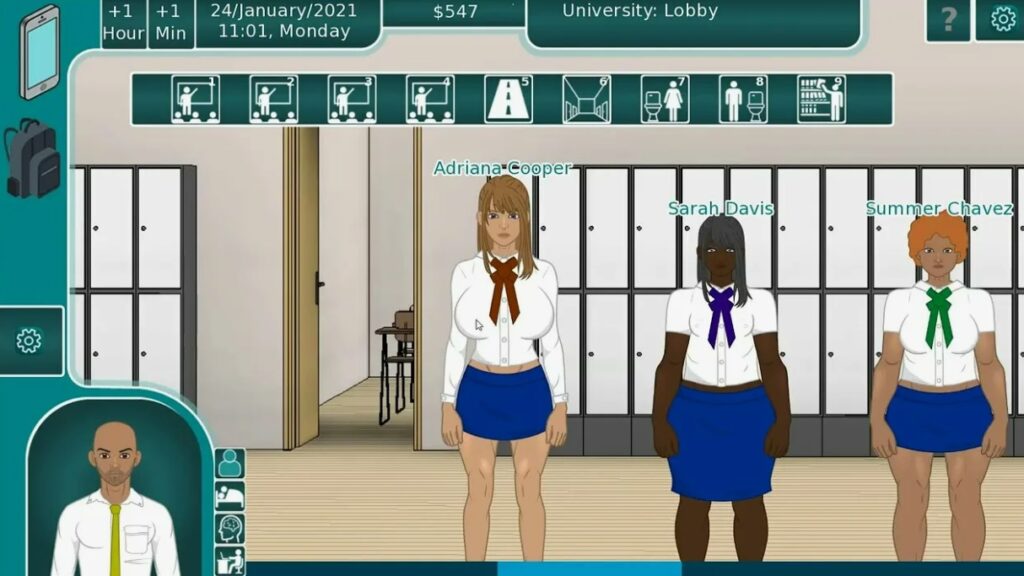
There are few things more frustrating in gaming than losing your hard-earned progress. When it happens in an adult game—where you’ve invested hours into building relationships and unlocking intimate scenes—it feels like a personal betrayal. A corrupted save file or a failed game update can lock away dozens of NSFW scenes in an instant. But don’t despair; your game progress is often recoverable. This guide will help you diagnose, fix, and prevent save file errors, and even show you how to reclaim what was lost.
Why Do Save Files Corrupt in Adult Games? Common Reasons
Understanding the «why» is the first step to fixing the problem. These errors are rarely random.
- Game Updates: The most common culprit. Developers change code and data structures. An old save file may be incompatible with the new version, causing crashes or refusing to load.
- Changing File Paths: Moving the game folder, renaming it, or installing a new version to a different location can break the internal links your saves rely on.
- Engine Glitches: Even stable engines like Ren’Py, Unity, or RPG Maker can have rare hiccups during the save/load process, especially if the game is closed abruptly.
- Mod/Translation Conflicts: Adding or removing mods or auto-translation patches mid-playthrough can alter game variables and corrupt your persistent data.
- Antivirus False Positives: Overzealous security software may quarantine or lock essential game files, mistaking them for threats.
Always make a manual backup of your entire ‘saves’ folder before updating a game, applying a mod, or moving files!
Locating Your Save Files: Where Are They Stored?
Before you can fix anything, you need to find your saves. They’re rarely in the main game folder.
Ren’Py Games (AppData and Game Folders)
Ren’Py games store saves in two places:
- Primary Saves (Per-Playthrough): Usually in C:\Users\[YourUserName]\AppData\Roaming\RenPy\[GameName]. This is where your individual save slots (save1.save, save2.save, etc.) live.
- Persistent Data (Global Progress): This is the critical one. It stores your gallery unlock status, settings, and overall game progress. It’s in the same AppData folder, typically named persistent.
Unity and RPG Maker Games
- Unity Games: Look in C:\Users\[YourUserName]\AppData\LocalLow\[DeveloperName]\[GameName]. Sometimes saves are directly in the game’s install folder under a Saves directory.
- RPG Maker (MV/MZ): Saves are usually inside the game folder itself: [Game Folder]/www/save/. For older RPG Maker (VX Ace), check [Game Folder]/Save/.
Step-by-Step: How to Fix a Corrupted Save File
If a specific save slot won’t load, follow these steps:
- Locate Your Backups: Ren’Py and many other engines automatically create backup saves (e.g., save1.save.bak). In your save folder, try renaming the .bak file to .save.
- Edit the Save File (Advanced): Save files are often plain text (JSON). Right-click the corrupted .save file, open it with Notepad++. Look for obvious corruption (garbled text). Sometimes, you can copy the contents from a slightly older backup file into the newer one, but this is risky.
- The Nuclear Option — Restore Persistent: If all saves fail but the game runs, the main persistent file might be corrupt. Replace it with a backup. Warning: This will reset your global gallery unlocks and preferences.
| Error / Symptom | Likely Cause | Quick Fix |
| «Couldn’t load save file» | Corrupt save slot, wrong version. | Load a backup (.bak) file or an older manual save. |
| Game loads but gallery is empty | Corrupt persistent file. | Restore a backup of the persistent file. |
| Save slots missing after update | Path change or major update. | Manually move old saves folder to the new game’s AppData location. |
Transferring Saves to a New Game Version Without Losing Progress
When a game updates (e.g., from v0.5 to v0.6), you can often keep your progress.
- Complete your playthrough and save in the old version.
- Install the new version to a fresh folder. Launch it once to generate its new AppData folder.
- Navigate to the old version’s save location (e.g., AppData/Roaming/RenPy/OldGameName).
- Copy the entire contents (especially the saves folder and the persistent file) to the new version’s corresponding AppData folder.
- Launch the new game. Your saves should appear.
The «Cheat» Method: How to Manually Unlock All Scenes (Gallery Fix)
If your gallery is broken or you want to recover lost scenes, you can manually edit the persistent file.
- For Ren’Py Games: Navigate to the game’s AppData folder. Open the persistent file with a text editor like Notepad++. It’s a Python data structure. Be extremely careful. Look for lines related to the gallery (e.g., _game_menu_screen = «gallery»). Often, simply deleting the persistent file will reset the gallery but not your save slots, forcing the game to rebuild it. You can then use an unlock all scenes patch (often a small .rpy script) or the developer console (open with Shift+O) and enter unlock commands.
- For Other Engines: Look for dedicated «100% Save» files or «Gallery Unlock» mods on community forums. These are usually .save files you drop into your save folder.
[SCREENSHOT PLACEHOLDER: Пример окна консоли разработчика Ren’Py (вызванной Shift+O) с введенной командой для разблокировки галереи.]
Best Practices to Prevent Save Loss in the Future
- Manual Backups are King: Before any update, copy your entire game folder and its AppData save folder to a backup location (e.g., a Backups folder on your desktop or an external drive).
- Use Cloud Saves (Wisely): Services like Google Drive or Dropbox can sync your AppData save folders. Alternatively, some game launchers offer cloud saves.
- Close Games Properly: Always use the in-game quit/exit menu. Force-closing the window increases corruption risk.
- Keep Multiple Save Slots: Rotate between 2-3 save slots, especially before major in-game choices. Don’t rely on a single «quicksave.»
Conclusion
Losing your progress in an adult game can feel like a major setback, but it’s rarely a permanent one. By understanding where your save data lives and learning a few basic recovery techniques, you can safeguard your journey through any NSFW visual novel or simulator. Remember: the few minutes spent creating a manual backup can save you dozens of hours of re-play. Take control of your game’s progress, and never let a technical glitch stand between you and the content you’ve earned.
Frequently Asked Questions (FAQ)
Sometimes. You can copy their .save slot files, but the critical persistent files in Ren’Py are often tied to your specific Windows user/installation. Simply dropping in their persistent file may not work. It’s best to use their .save files and then manually unlock the gallery via console commands if needed.
This is usually due to version incompatibility. The new version may have changed how gallery flags are stored or reset the persistent file. Restoring a backup of your old persistent file (if compatible) or using a new «unlock all» patch for the updated version are the best fixes.
Yes. JoiPlay stores Ren’Py game saves internally on your device. The path is typically: /storage/emulated/0/Android/data/com.joiplay.joiplay/files/[GameName]. You can access and back up these files using a file manager app.
The safest way is from within the game’s load menu. Deleting files directly from the saves folder works, but avoid touching the persistent file unless you intend to reset all global progress. You can also safely delete files with the .save.bak extension if you no longer need automatic backups.
Other articles
 None
None
 None
None
 About new products
 None
None
 Back
Back
 None
None
 None
None
 None
None
 None
None

